Dashboard
How to sign in to the dashboard
- Go to the login page
- Press the "Login with Discord" button
- Click on "Authorize"
Quick overview
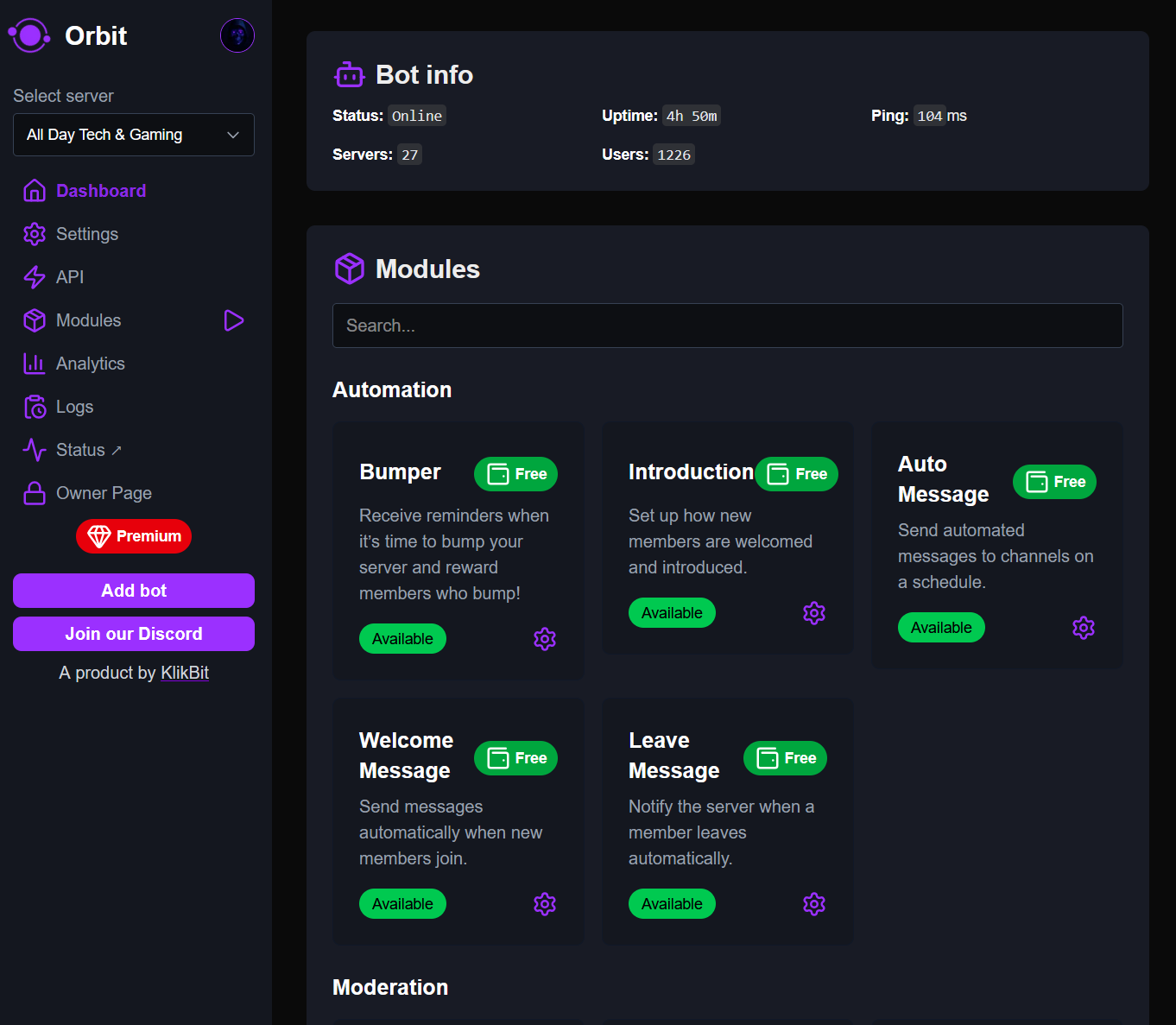
This is the dashboard where you can control and configure @Orbit completely.
Settings
Here you can configure global settings like:
- Nickname
- Language (currently Dutch and English supported)
- Updates channel - Where i, the creator can post messages to with important bot information
- Timezone
- If you want to show your server in the Orbit server list
- Primary color - Color of system embeds
- Secondary color - Not in use atm
API
You can turn on the API to have access to specific API routes. Current supported endpoints are:
- https://bot.botinorbit.com/api/bumper - Returns a list of all users who bumped the server in the last 24 hours
- https://bot.botinorbit.com/api/ServerStats - Returns detailed statistics about the server
- https://bot.botinorbit.com/api/get-images-api?channelid=CHANNEL_ID - Returns a list of all images uploaded in the specified channel
Modules
Here you can configure all Orbit's modules. There are currently a total of 35 modules and more will be added!
To see how you configure the modules, see the docs.
Analytics
Here you can view common analytics like:
- Message flow hourly
- Message flow total
- Top channels
- etc.
More on that you can read here
Logs
Here you can display server and dashboard logs.
Status
This will redirect you to our status page